Verification Step 2 – TIMSS System Check
If you are having firewall difficulties, please review the
The following table describes the system requirements which are verified by the TIMSS System Check program.
| Icon |
Label |
Description |
Requirement |
 |
Screen Resolution |
The number of distinct pixels in each dimension that can be displayed on the monitor. |
Minimum of 1280 x 800 or 1366 x 768 |
 |
Browser |
The version of the internet browser. |
Latest updates strongly suggested |
 |
JavaScript |
A scripting programming language that runs on the web browser to make specific features on the web page functional. If JavaScript has been disabled within your browser, the content or the functionality of the web page can be limited or unavailable. |
Enabled |
Please use the following link to run the TIMSS System Check:
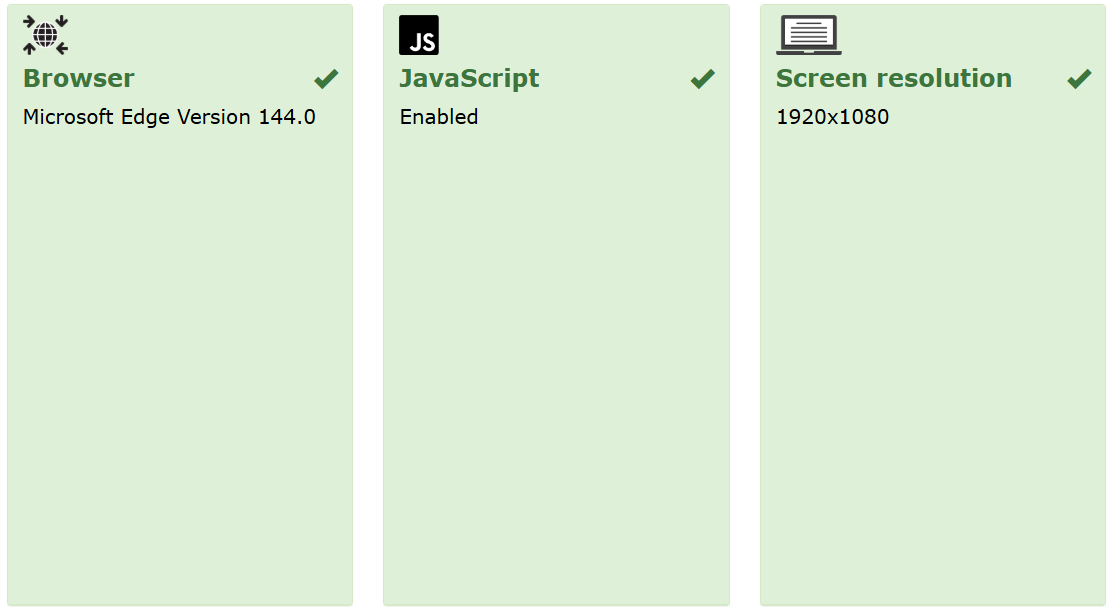
A green background and checkmark indicate compatibility, whereas a red background and “X” indicate incompatibility, with respect to the particular required configuration. If any device configuration receives a red background and “X,” result, as shown in the image below, the device cannot be used for TIMSS administration unless it can be reconfigured. If the school contact or IT specialist determines the incompatibility can be readily reconfigured, please resolve the issue and run the TIMSS System Check program again. If the incompatibility remains, the device cannot be used for TIMSS.
If all requirements are cleared by a green background and checkmark, the verification was successful. For best results, run the TIMSS System Check on a minimum of three devices intended for administration.