Verification Step 1 – TIMSS System Check
If you are having firewall difficulties, please review the
Please use the following link to run the TIMSS System Check:
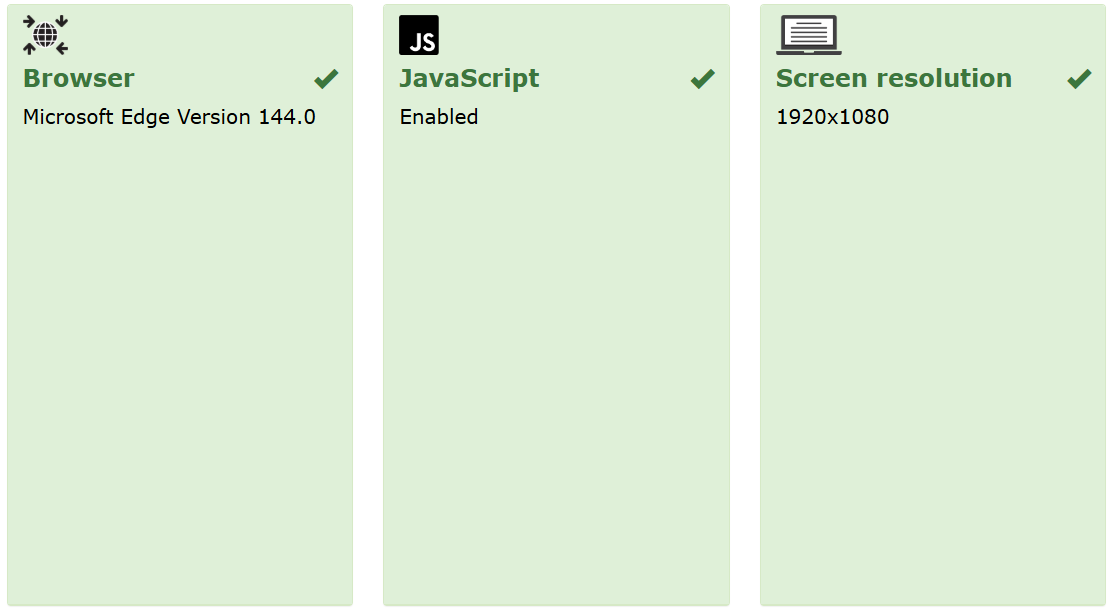
The following table describes the system requirements which are verified by the TIMSS System Check program. For best results, run the TIMSS System Check on a minimum of three devices.
| Icon |
Label |
Description |
Requirement |
 |
Browser |
The version of the internet browser. |
Latest updates strongly suggested |
 |
JavaScript |
A scripting programming language that runs on the web browser to make specific features on the web page functional. If JavaScript has been disabled within your browser, the content or the functionality of the web page can be limited or unavailable. |
Enabled |
 |
Screen Resolution |
The number of distinct pixels in each dimension that can be displayed on the monitor. |
Minimum of 1280 x 800 or 1366 x 768 |
If all requirements are cleared by a green background and checkmark, the verification was successful.
If any device configuration receives a red background and “X,” result, the device cannot be used for TIMSS administration unless it can be reconfigured. If the incompatibility can be readily reconfigured, please resolve the issue and run the TIMSS System Check program again. If the incompatibility remains, the device cannot be used for TIMSS.
Please record the result on the School Information Form. If you select “Verification Failed,” the CMEC Technical Support Team will contact the school to help resolve any technical issues and make alternative arrangements for devices, as needed.
For additional technical support including whitelisting domains, internet speed testing and other common questions, please refer to Technical Requirements and Troubleshooting.