Assessment Lock Plus for Chromebooks
School-Managed Chromebooks
There are 2 options for the installation of Assessment Lock Plus on school-managed Chromebooks. Please select the option that matches your school's device management setup.
Schools can install the Assessment Lock Plus Chrome extension using either:
Individual Chromebooks
Step 1: Find and Install the Extension
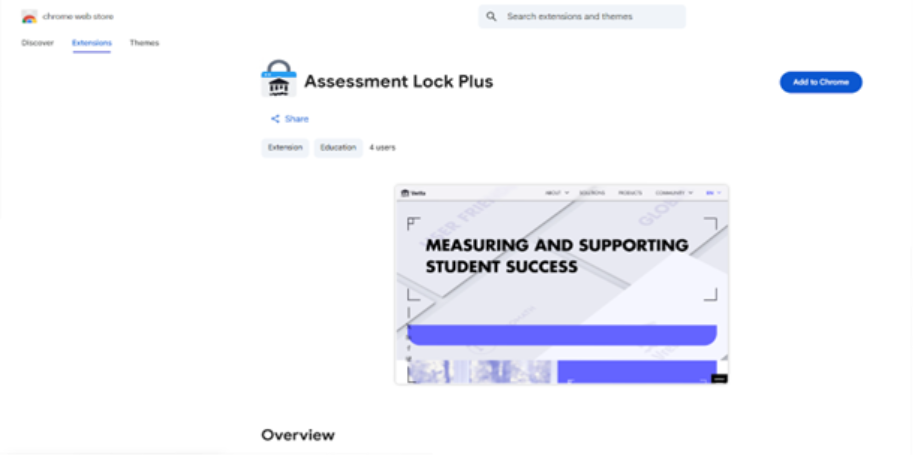
- Search for “Assessment Lock Plus”.
- On the extension page, click Add to Chrome.
- Click Add extension in the confirmation dialog box.
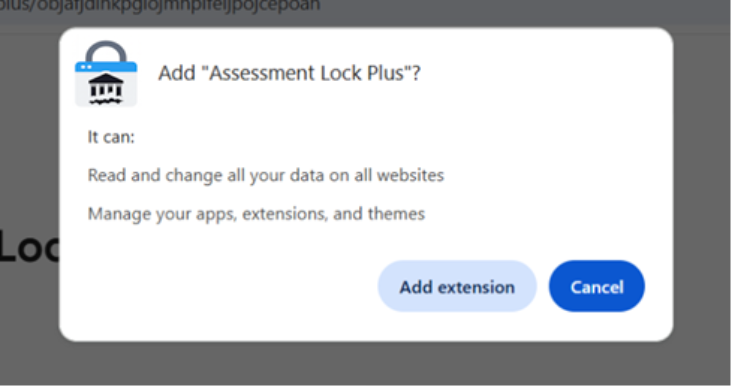
You have successfully installed Assessment Lock Plus. No further steps are required at this time. To open and begin your assessment, please refer to the instructions provided under On Assessment Day.
To exit Assessment Lock Plus, use the button in the bottom left corner and enter the EXIT password: