Safe Exam Browser (SEB) for Macintosh (laptop) Devices
Before any setup can begin, it is recommended that fleet management be enabled on all school-owned devices. This system allows IT staff to manage all devices simultaneously, ensuring consistent installation of software and configuration files across the entire school.
Once fleet management is active, installation of the application may begin on the primary management computer—the designated device used to configure and push settings to the rest of the fleet—by following the instructions below. If you are not using fleet management, follow the instructions below for each device.
PART A: Installing the Application
Step 1: Download Safe Exam Browser
Note: The assessment is compatible with version 3.1 of Safe Exam Browser. .
Step 2: Install Safe Exam Browser
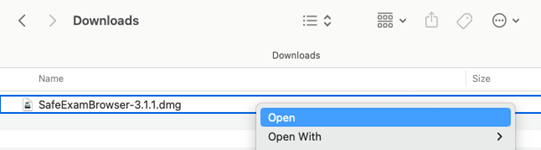
- Open your Downloads folder and double-click the .dmg file.
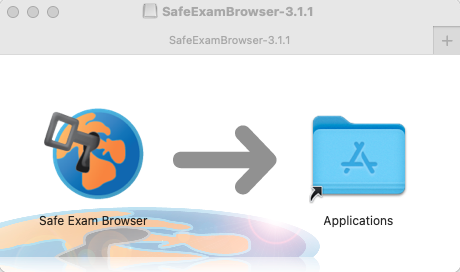
- Drag the Safe Exam Browser icon into the Applications folder.
- Enter the administrator username and password when prompted.
Step 3: Verify the Installation
- Open Safe Exam Browser using Spotlight Search
- Safe Exam Browser should launch in full screen with a message stating that it “needs settings” or a link to continue. These are indications that the installation is complete, but Safe Exam Browser still requires the configuration file before you can start.
PART B: Loading the SEB-Configuration File
Step 1: Open the SEB-Configuration file
- Locate and open the SEB-Configuration file (typically found in the Downloads folder)
- When the login screen opens, enter your credentials and PCAP will automatically begin.
Step 2: Ensure proper launch on all devices
- When setting up computers for PCAP, make sure Safe Exam Browser is opened on each device by double-clicking the SEB-Configuration file in the Downloads folder.
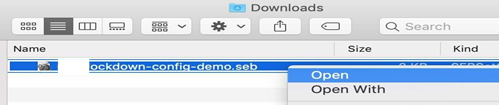
- Note: DO NOT launch Safe Exam Browser by clicking on the icon or the .dmg file itself. You MUST use the SEB-Configuration file (typically found in the Downloads folder) to access PCAP.
- To exit the SEB, use the button in the bottom right corner and enter the EXIT password: